There are two ways to share your bucket with another AWS account:
-
Using Bucket Policies
-
Using Access Control List (ACL)
Bucket Sharing using Bucket Policies
Requirements:
Account Id (an Id of the account you want to share the bucket with),
it can be found in AWS Account Settings: https://console.aws.amazon.com/billing/home?#/account
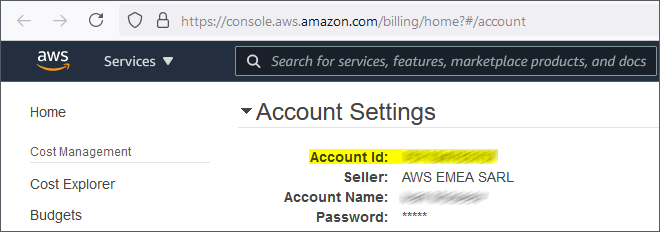
Account Id in AWS Account Settings
To share your bucket via Bucket Policies:
1. Start S3 Browser and select the bucket you want to share.
2. Click Buckets -> Edit Bucket Policy:
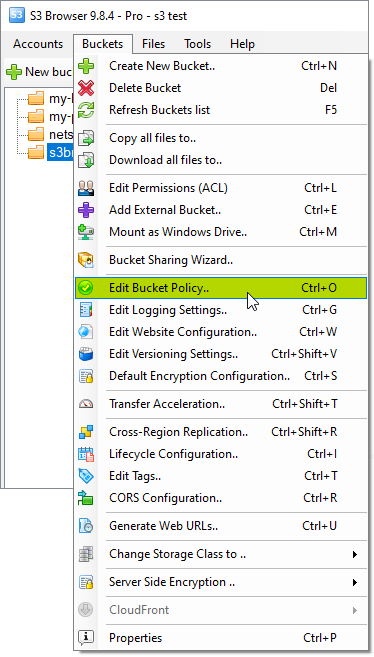
Click Buckets, Edit Bucket Policy to open Bucket Policies Editor
The Bucket Policy Editor dialog will open:
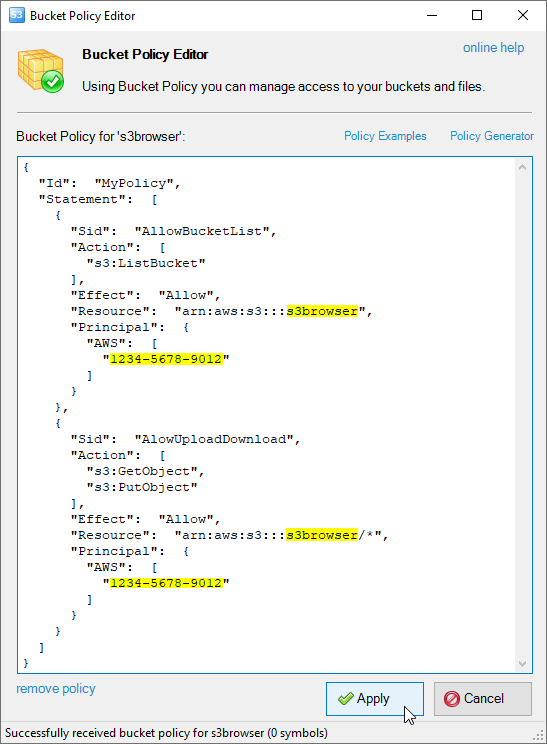
The Bucket Policy Editor dialog allows you to view and edit bucket policy
3. Paste the following Bucket Policy to allow list bucket, upload and download files:
{
  "Id":  "MyPolicy",
  "Statement":  [
    {
      "Sid":  "AllowBucketList",
      "Action":  [
        "s3:ListBucket"
      ],
      "Effect":  "Allow",
      "Resource":  "arn:aws:s3:::s3browser",
      "Principal":  {
        "AWS":  [
          "1234-5678-9012"
        ]
      }
    },
    {
      "Sid":  "AlowUploadDownload",
      "Action":  [
        "s3:GetObject",
        "s3:PutObject"
      ],
      "Effect":  "Allow",
      "Resource":  "arn:aws:s3:::s3browser/*",
      "Principal":  {
        "AWS":  [
          "1234-5678-9012"
        ]
      }
    }
  ]
}
Replace s3browser with your actual bucket name and
1234-5678-9012 with the actual grantee's Account Id.
If you would like to grant other permissions, please check
AWS Policy Generator to create bucket policy you need.
4. Click Apply to save changes and close the dialog.
Please check out these instructions
to learn how the grantee can connect to the bucket you shared with them.
Bucket Sharing using Access Control List (ACL)
Requirements:
Email Address - an email address associated with the account you want to share the bucket with.
This email address is used to log-in into the AWS Management Console.
You can not use an email address which is associated with more than one AWS account.
In such a case, you may use an Owner Id.
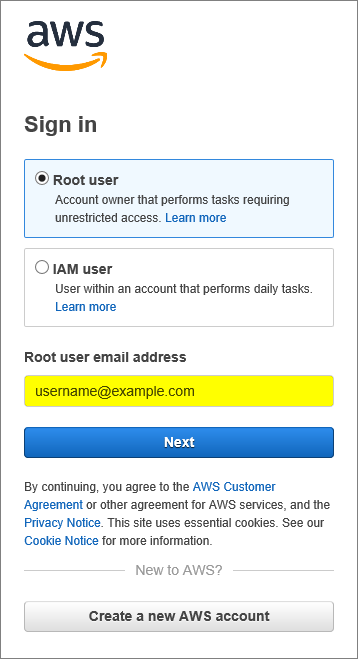
AWS Account Email is an email used to sing in into the AWS Management Console
OR
Owner Id - an Owner Id of the account you want to share the bucket with
(it's not the same as the Account Id explained above).
Account Owner Id can be copied from the bucket properties of the grantee account:
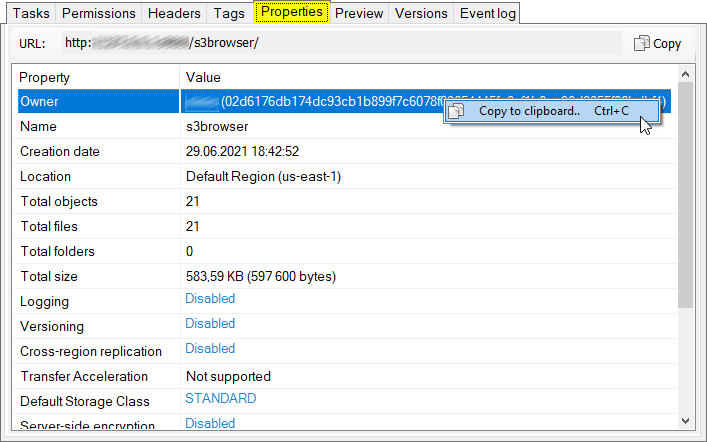
How to get AWS Account Owner Id
To share the bucket via Access Control List (ACL):
1. Select the bucket you want to share and click Buckets -> Edit Permissions (ACL):
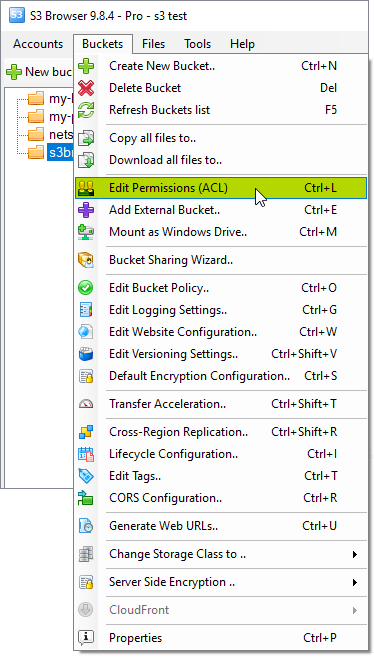
Select the bucket and click Bucket, Edit Permissions (ACL)
The Permissions tab will open:
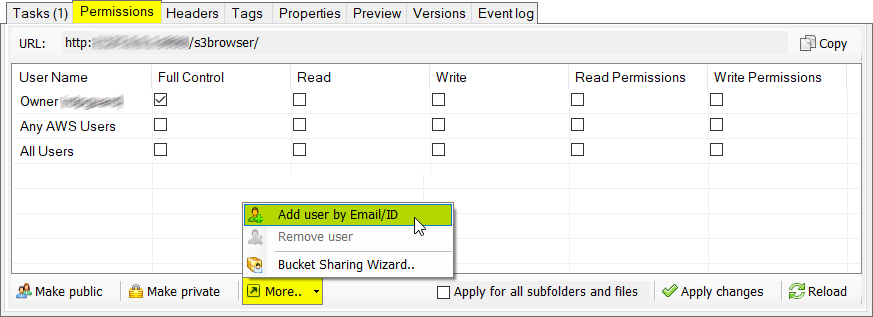
Permissions Editor allows you to view and edit bucket/file permissions
2. Click More -> Add user by Email/ID
The Add User by Email/ID dialog will open:
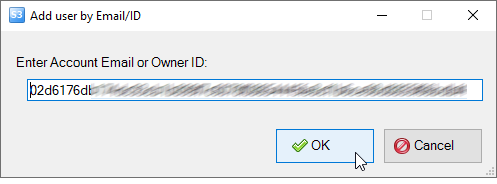
Enter or paste Account Email or Owner Id of the grantee account
3. Enter or paste Account Email
or Owner Id of the grantee account.
4. Check the permissions you want to grant and click Apply changes.
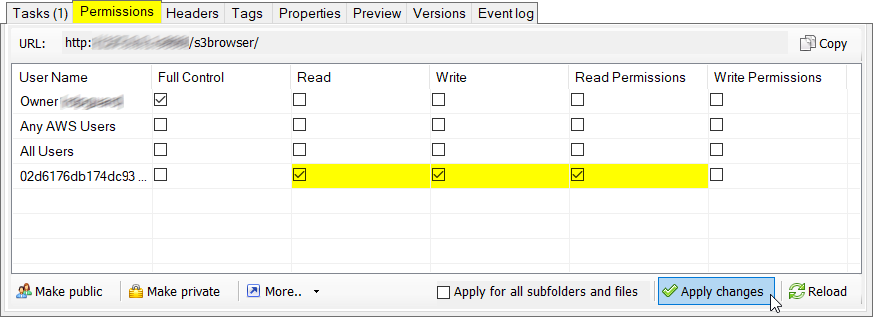
Check the permissions you want to grant
Important note: if you plan to allow file upload (the Write permission) we
recommend to grant the Read Permissions too AND uploader (the grantee) should also
enable permissions inheritance in Tools, Options, General. This is important if you need
access to the files uploaded by another account.
Please check out these instructions
to learn how the grantee can connect to the bucket you shared with them.