Recently, AWS IAM Team announced support for Login Profiles - an easy and convenient way to create username/password pairs which can be used to sign-in and use AWS Management Console and AWS Developer Forums.
With S3 Browser Freeware you can easily create and edit Login Profiles.
To create new username/password for AWS Console:
1. Click Tools -> Access Manager (IAM)
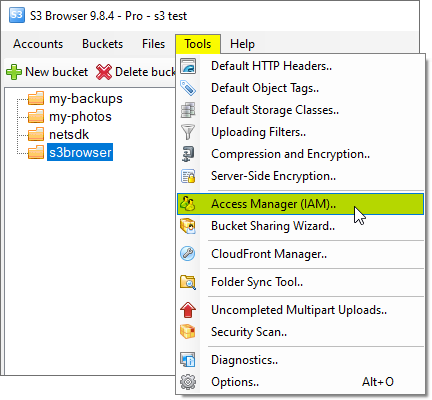
Click Tools -> Access Manager (IAM)
The Access Manager (IAM) dialog will open: 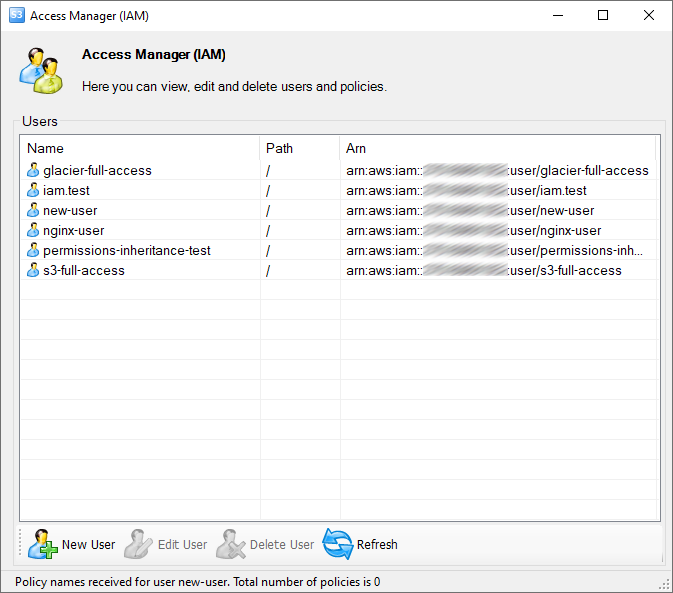
Access Manager (IAM) dialog
2. Right-click the user and choose AWS Login Profile -> Set new password..
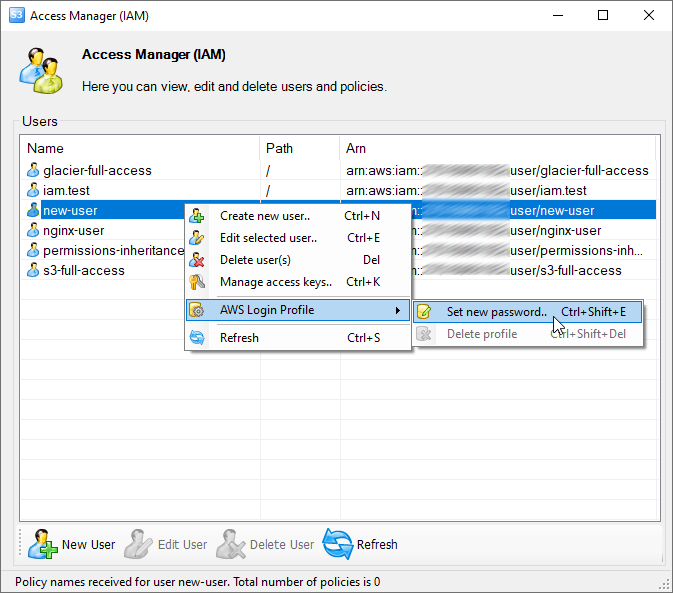
Right-click and choose AWS Login Profile, Set new password. You may also use the Ctrl+Shift+E keyboard shortcut
The AWS Login Profile dialog will open:
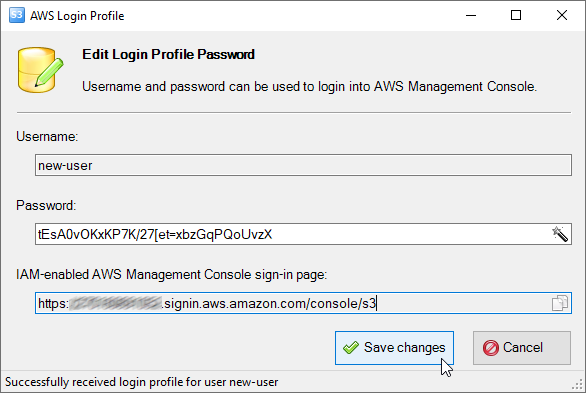
Enter new password and click Save changes
3. Enter new password and click Save changes.
Users who use the AWS Management Console must sign in to your AWS Account through the IAM-enabled sign-in page.
The IAM-enabled sign-in page URL has the following format:
https://Your_AWS_Account_ID.signin.aws.amazon.com/console/s3
S3 Browser generates such link automatically. You may send this link and username/password to the user.
To delete Login Profile:
1. Right-click the user and choose AWS Login Profile -> Delete profile
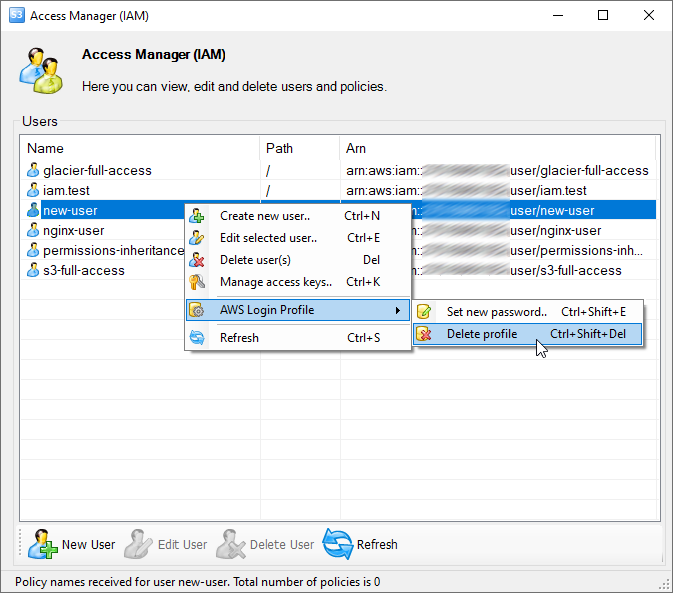
Choose AWS Login Profile -> Delete profile from user's context menu. You may also use Ctrl + Shift + Del keyboard shortcut
2. Confirm Login Profile deletion.
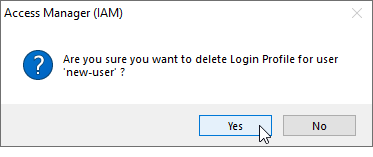
Confirm Login Profile deletion