Working with Bucket Lifecycle Bucket Lifecycle Rules Overview Lifecycle rules allow you to manage objects lifecycle. With lifecycle configuration rules, you can tell Amazon S3 to transition objects to less expensive storage classes, or archive or delete them. Using lifecycle rules you can schedule the following actions: - Transition objects to one of the following less expensive storage classes:
- Expiration defines when objects expire. Expired objects are automatically deleted by Amazon S3.
- Abort incomplete multipart uploads allows you to delete multipart uploads that are not successfully completed within the predefined time period.
- Remove expired object delete markers - in a versioning-enabled bucket, a delete marker with zero noncurrent versions is referred to as the expired object delete marker.
Each lifecycle rule consists of: - Filter - identifies one or more files to which the rule applies. You may filter the objects by prefix and/or by one or multiple object tags.
- Condition - defines when the rule should apply, you may specify the condition based on an object's age or on a specific date.
- Action - you may configure one or multiple actions that you want Amazon S3 to perform on the objects covered by the Filter
To add new lifecycle rule 1. Select the bucket you want to work with and click: Buckets -> Lifecycle Configuration.. 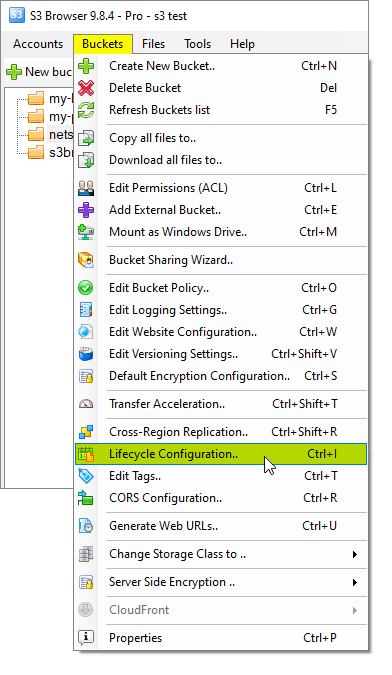
Select the bucket and click Buckets, Lifecycle Configuration.. Or use the CTRL+I keyboard shortcut. The Bucket Lifecycle Rules dialog will open: 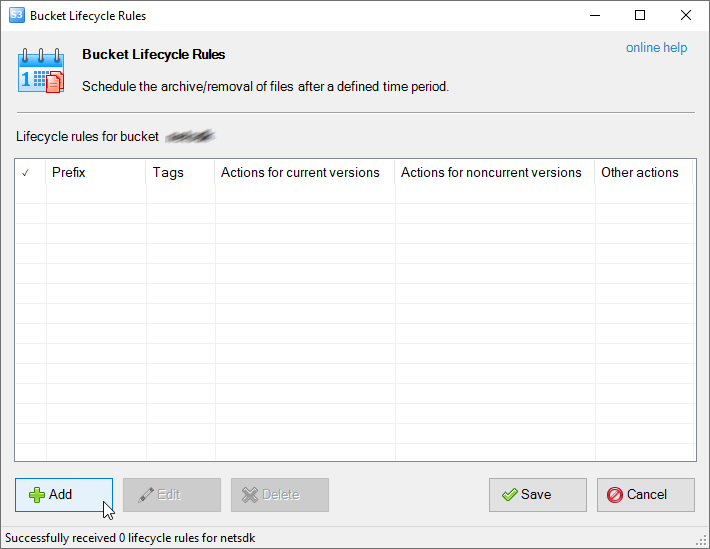
Bucket Lifecycle Rules dialog. Click Add or use the Insert keyboard shortcut. 2. Click Add. The Add New Lifecycle Rule dialog will open, it contains the following tab pages: - Filter - the page where you define the filter. The filter identifies one or more files to which the rule applies.
- Actions for current versions - the page where you define transition and expiration actions for current object versions.
- Actions for noncurrent versions - the page where you define transition and expiration actions for noncurrent object versions.
- Other actions - the page where you configure other actions such as uncompleted uploads abortion and removal of expired delete markers.
3. Specify the rule details: Filter 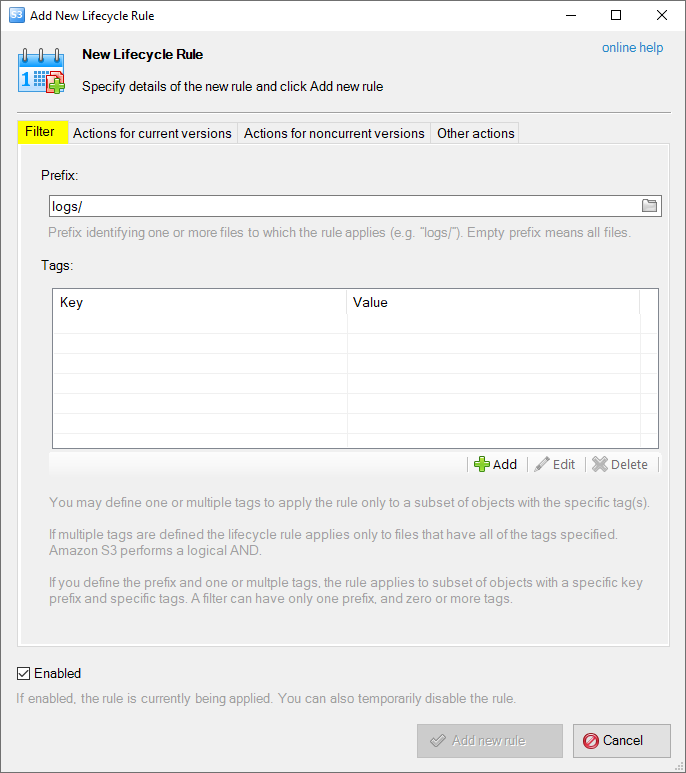
Add New Lifecycle Rule dialog - the Filter tab You may define the filter based on the object's prefix and/or by one or multiple object tags. Prefix - identifying one or more files to which the rule applies (e.g. 'logs/'). Empty prefix means all files. Tags - You may define one or multiple tags to apply the rule only to a subset of objects with the specific tag(s). If multiple tags are defined the lifecycle rule applies only to files that have all of the tags specified. Amazon S3 performs a logical AND. If you define the prefix and one or multple tags, the rule applies to subset of objects with a specific key prefix and specific tags. A filter can have only one prefix, and zero or more tags. Actions for current/noncurrent versions 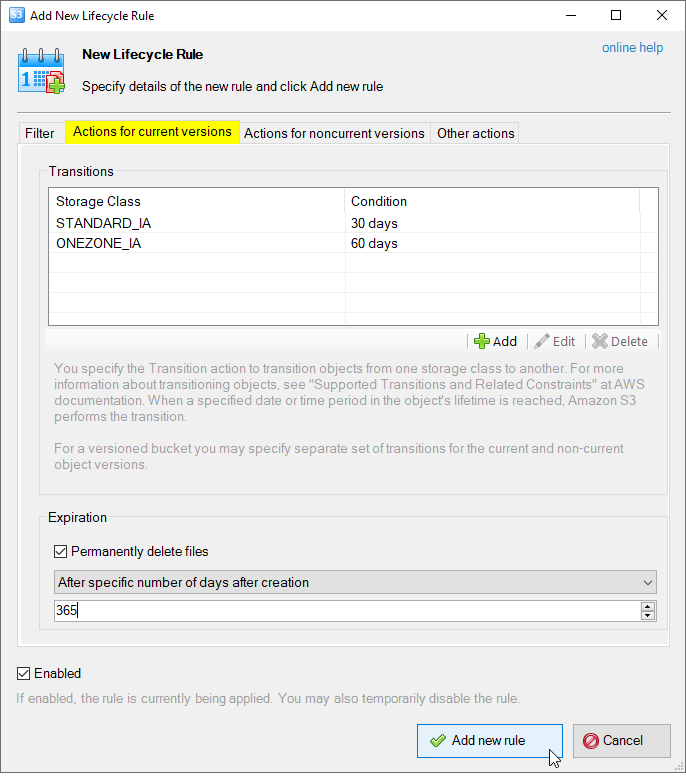
Add New Lifecycle Rule dialog - Actions for current versions Transitions - You specify the Transition action to transition objects from one storage class to another. For more information about transitioning objects, see "Supported Transitions and Related Constraints" at AWS documentation. When a specified date or time period in the object's lifetime is reached, Amazon S3 performs the transition. Supported transitions are displayed on a diagram below: 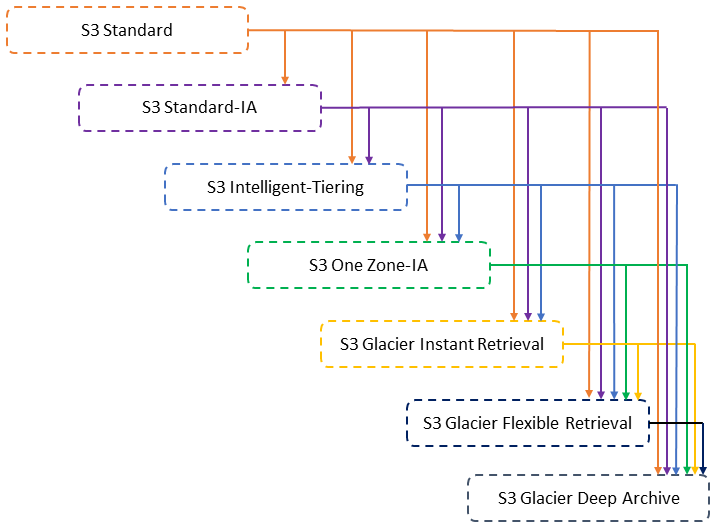
Expiration - Allows you to permanently delete the objects after specific number of days after creation or on a particular date. Check out AWS documentation to learn more details on how Amazon S3 calculates the object's age. Important: The date-based action is not a one-time action. S3 continues to apply the date-based action even after the date has passed, as long as the rule status is Enabled. Other actions 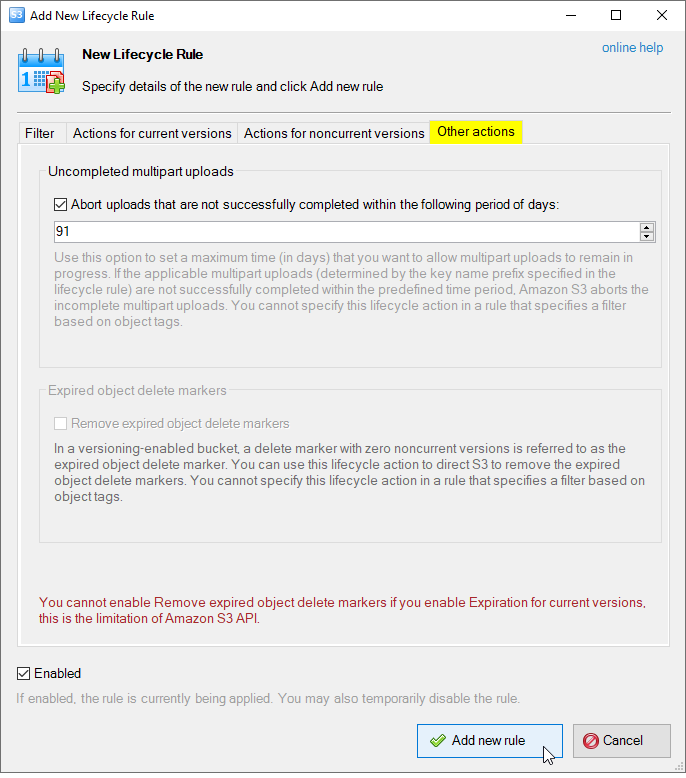
Add New Lifecycle Rule dialog - Other actions Abort uploads that are not successfully completed - Use this option to set a maximum time (in days) that you want to allow multipart uploads to remain in progress. If the applicable multipart uploads (determined by the key name prefix specified in the lifecycle rule) are not successfully completed within the predefined time period, Amazon S3 aborts the incomplete multipart uploads. You cannot specify this lifecycle action in a rule that specifies a filter based on object tags. Remove the expired object delete markers - this option is available for versioned buckets only. In a versioning-enabled bucket, a delete marker with zero noncurrent versions is referred to as the expired object delete marker. You can use this lifecycle action to direct S3 to remove the expired object delete markers. You cannot specify this lifecycle action in a rule that specifies a filter based on object tags. 4. Click Add new rule 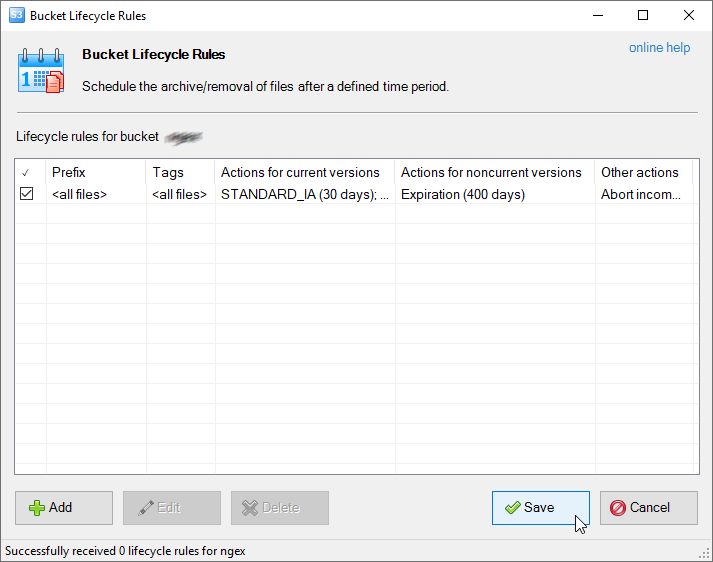
Add New Rule - Click Save to submit your changes to Amazon S3 or use the CTRL+S keyboard shortcut. 5. Click Save to submit your changes to Amazon S3.
To edit existing lifecycle rule 1. Select the bucket you want to edit lifecycle rules for and click: Buckets -> Lifecycle Configuration..
Select the bucket and click Buckets, Lifecycle Configuration.. Or use the CTRL+I keyboard shortcut. The Bucket Lifecycle Rules dialog will open: 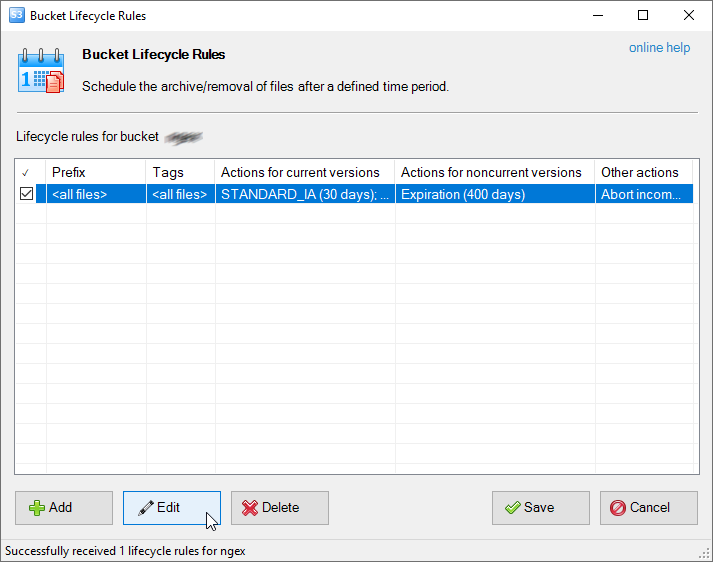
Select the rule and click Edit or use the F2 keyboard shortcut. 2. Select the rule and click Edit. The Edit Lifecycle Rule dialog will open: 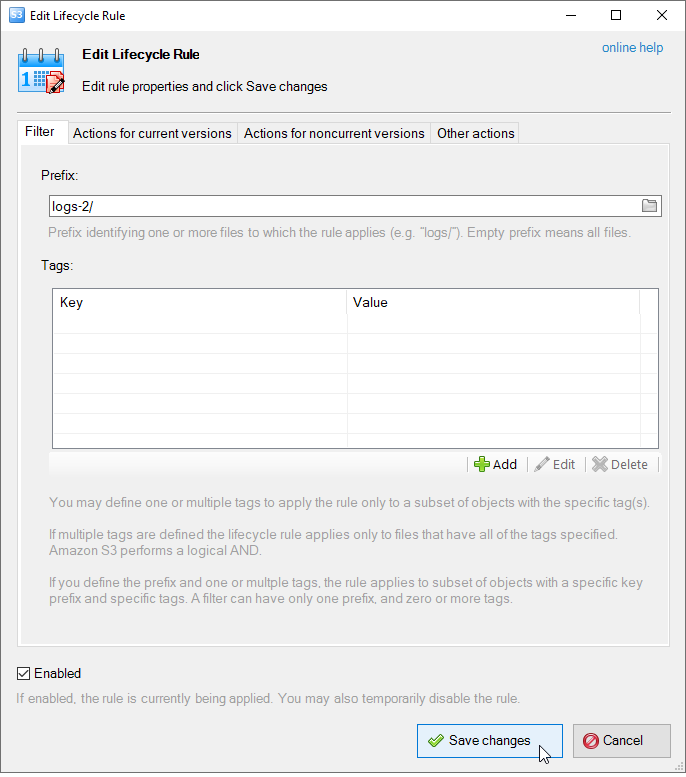
Edit Lifecycle Rule properties and click Save changes 3. Edit rule' properties and click Save changes 4. Click Save to submit your changes to Amazon S3.
To delete one or multiple lifecycle rules 1. Select the bucket you want to update lifecycle rules for and click: Buckets -> Lifecycle Configuration..
Select the bucket and click Buckets, Lifecycle Configuration.. Or use the CTRL+I keyboard shortcut. The Bucket Lifecycle Rules dialog will open: 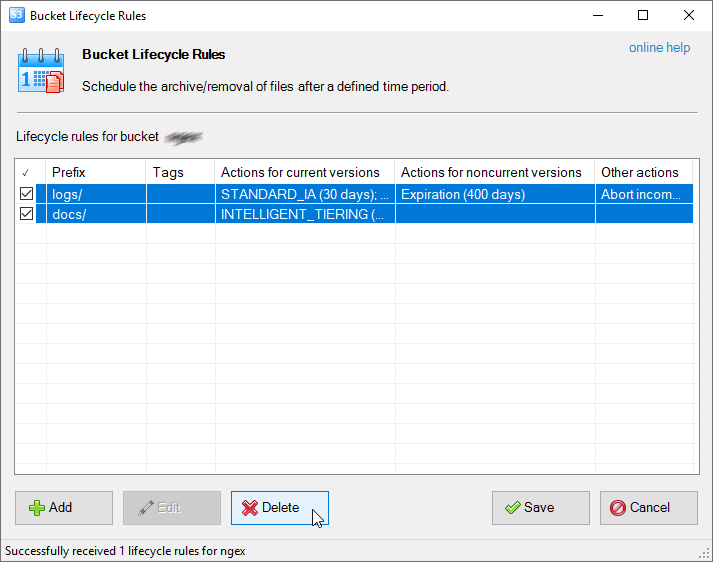
Select the rule(s) you want to delete and click Delete or use the Delete keyboard shortcut. 2. Select the rule(s) you want to delete and click the Delete button. 3. Click Save to submit your changes to Amazon S3.
Working with versioned buckets The recently announced support of lifecycle rules for versioned buckets is now implemented in S3 Browser. You can now configure expiration and transition actions for object versions as well. Lifecycle rules editor was updated accordingly. If you adding lifecycle rule for a versioned bucket, there will be two tabs: Current Versions and Previous Versions. You can specify separate actions for current and noncurrent versions. Bucket Lifecycle Rules dialog for versioned bucket 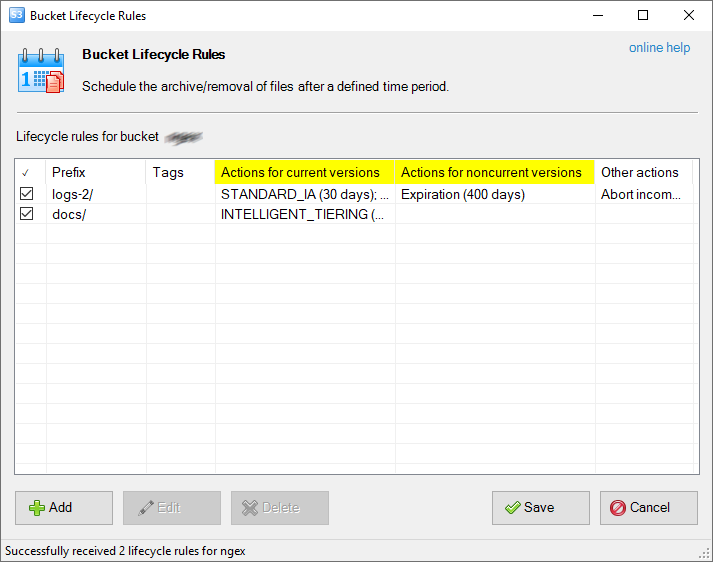
Lifecycle rules dialog for versioned bucket Edit Lifecycle Rule dialog for versioned bucket 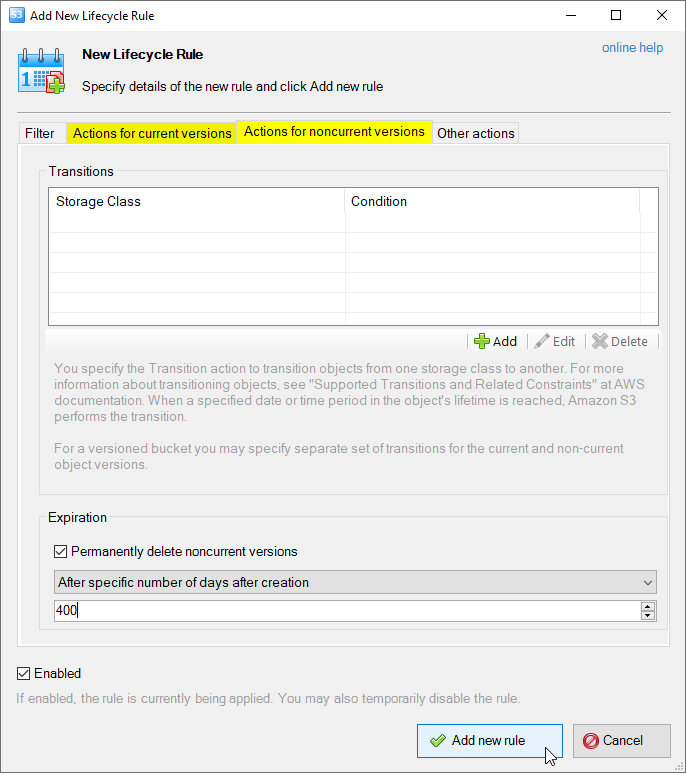
Edit Lifecycle Rule dialog for versioned bucket See also: How to restore versions stored under the GLACIER or DEEP_ARCHIVE storage classes
|