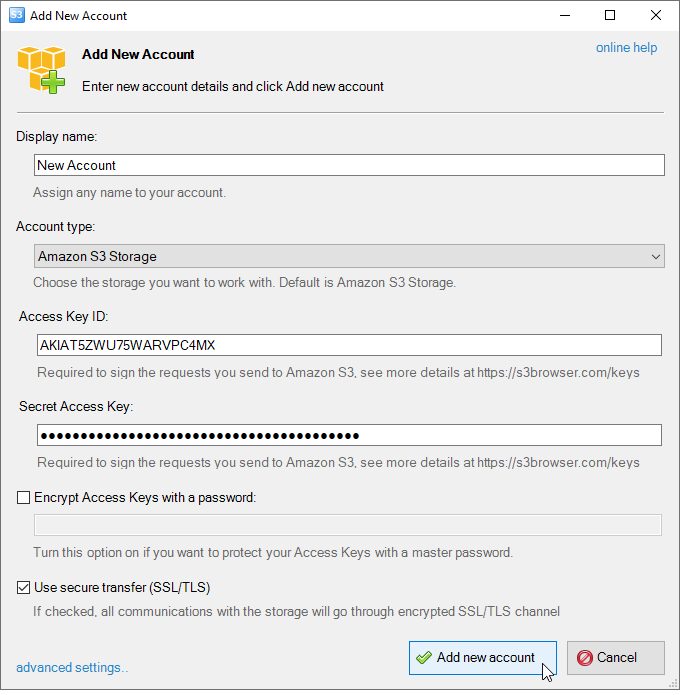
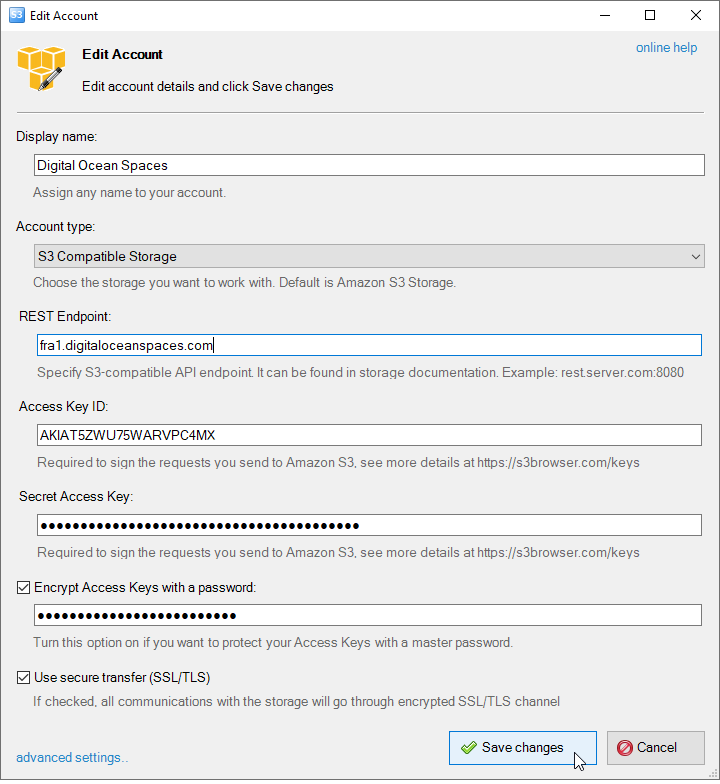
Access Key ID and Secret Access Key - Access Keys are used to sign the requests you send to the storage. If you need help in retrieving your Access Keys, please check out the following article: AWS Access Keys .
Encrypt Access Keys with a password - Turn this option on if you want to protect your Access Key ID and Secret Access Key with a master password.
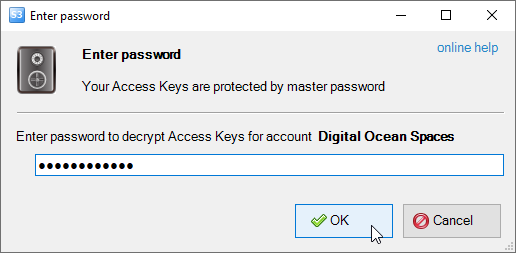
You will be prompted to enter your master password each time you start S3 Browser. If you do not specify the master password, the hard-coded password will be used to encrypt your credentials for storing on your local disk.
Access Keys are encrypted before they are written to the disk. The current encryption format uses AES-256-CBC with HMAC-SHA256 and PBKDF2-SHA256.
Use secure transfer (SSL/TLS) - Turn this option on if you would like to encrypt all communications with the storage.
3. Click Add new account.
Advanced Account Settings
You may also configure additional settings when adding a new account or editing an existing account.
To open advanced account settings, click the advanced settings link located at the bottom-left corner of the dialog.
The Advanced Account Settings dialog will open:
Advanced account settings
You may configure the following settings here:
Enable Dual-Stack Endpoints (IPv4/IPv6) - When checked, S3 Browser will use dual-stack endpoints to access storage, allowing connections over both IPv4 and IPv6. This improves compatibility with networks that support IPv6.
List All My Buckets When Account Assigned - When checked, S3 Browser will perform the s3:ListAllMyBuckets call when the account is assigned. If the account does not have permission to list all buckets, you can uncheck this option to avoid failed tasks and warnings in the log.
Check CloudFront Distributions When Account Assigned - When checked, S3 Browser will perform the cloudfront:ListDistributions call when the account is assigned, allowing it to set a special icon for buckets used as origins for CloudFront distributions. If the account does not have permission to list CloudFront distributions, you can uncheck this option to avoid failed tasks and warnings in the log.
Use Amazon S3 Transfer Acceleration - When checked, S3 Browser will use Amazon S3 Transfer Acceleration to speed up file transfers to and from the storage. This feature is useful for transferring large files over long distances. Note that Amazon S3 Transfer Acceleration must be enabled for your bucket.
External Buckets - You can edit the external buckets associated with the account. Each bucket should be listed on a new line. Optional paths are also supported, with a slash used as the delimiter (e.g., my-bucket/and/optional/path).
Starting from version 12.9.7, S3 Browser allows you to organize your storage accounts into folders. This helps you group accounts by environment (for example Production, Testing, Clients) and keep your list of accounts clean and structured.
To create a new folder:
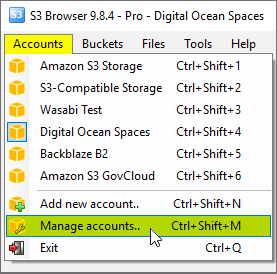
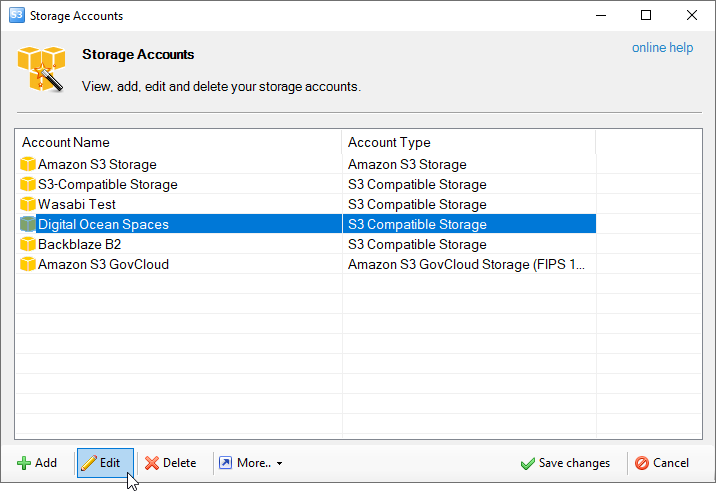
1. Click Accounts, Manage Accounts..
2. In the Storage Accounts dialog, click More, Create new folder or use the Ctrl+N keyboard shortcut.
Create a new folder for your accounts
3. Enter the folder name and click Create new folder.
The Create New Folder dialog
To move accounts into a folder:
1. Select one or multiple accounts in the Storage Accounts dialog.
2. Right-click selected accounts and choose Move to folder or use the Ctrl+M keyboard shortcut. Alternatively, you can use drag-and-drop to move accounts and folders into another folder.
Moving accounts into a folder
3. Select the destination folder and click OK.
The Browse for Folder dialog
To work with accounts in folders:
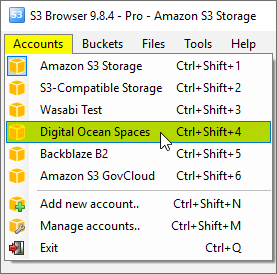
Accounts placed into folders remain fully functional and can be used the same way as before. You can expand folders in the Accounts menu and quickly access the accounts inside them:
Accounts menu displays folders with accounts inside
You may also move accounts between folders, rename folders, or remove them at any time.
"Amazon Web Services", "AWS", "Amazon S3", "Amazon Simple Storage Service", "Amazon CloudFront", "CloudFront", the "Powered by Amazon Web Services" logo are trademarks of Amazon.com, Inc. or its affiliates in the US and/or other countries.